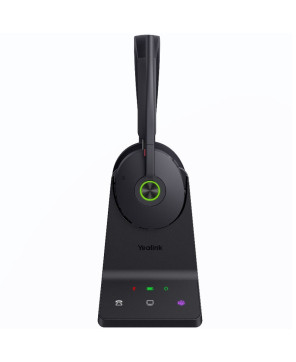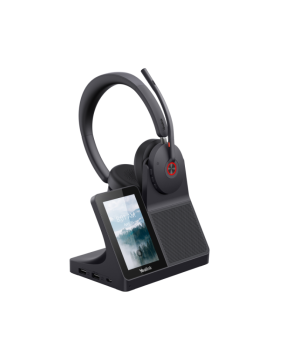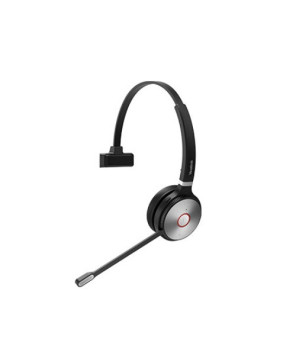


The Yealink WH66 Microsoft Teams DECT Mono Wireless Headset is a premium unified communication solution designed for professionals who value crystal-clear audio and seamless connectivity. Featuring a 4.0-inch touchscreen base, Yealink Acoustic Shield Technology, and built-in Bluetooth and USB 3.0 ports, it allows effortless control of calls and device integration. With wideband audio, noise-canceling microphones, and long wireless range, it delivers superior sound and comfort for all-day productivity. Optimized for Microsoft Teams, the WH66 Mono enhances collaboration and ensures professional-grade communication performance in any workspace.
Works with: Desk phone, Mobile phone, Computer
How does it connect:USB 3.0 & 2 x Bluetooth devices
Brand New - A brand-new, unused, unopened, undamaged item in its original packaging.
This item comes with a 24-month manufacturer's warranty.
For WH62/WH63/WH66/WH67, up to 4 headsets can be connected to one base for conferencing.
You need to power on the new headset.
1. Dock the new headset in the primary headset's base when you are on a call with the primary headset.
2. Press the Call Control button on the primary headset within 10 seconds to accept the new headset to join the conference.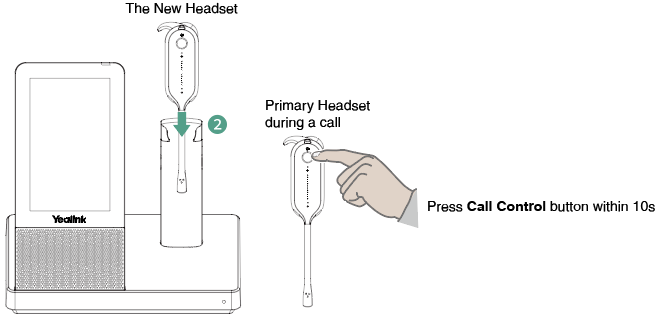
3. The primary headset prompts "New Headset Joined", and the new headset prompts "Headset Connected".
Once the primary headset establishes the call, the audio will be shared between headsets. When the call ends, the additional headset will disconnect from the base.
By default, the new headset is muted after pairing.
You need to power on the new headset.
1. Dock the new headset in the base when you are on a call with the primary headset.
2. Go to  or
or  > Add Headset.
3. Dock the new headset in the base.
4. Press the Call Control button on the primary headset within 10 seconds to accept the new headset into the conference.
5. The primary headset prompts "New Headset Joined", and the new headset prompts "Headset Connected".
Once the primary headset establishes the call, the audio will be shared between headsets. When the call ends, the additional headset will disconnect from the base.
By default, the new headset is muted after pairing.
Important:
Note: Up to three headsets can be connected to one base for conferencing.
You need to power on the new headset.
Once the primary headset establishes the call, audio will be shared between headsets. When the call ends, the additional headset will disconnect from the base.
By default, the new headset is muted after pairing.
You need to power on the new headset.
1. Go to  or
or  > Settings > Basic Settings > Add Headset.
2. Tap Add and dock the new headset in the base.
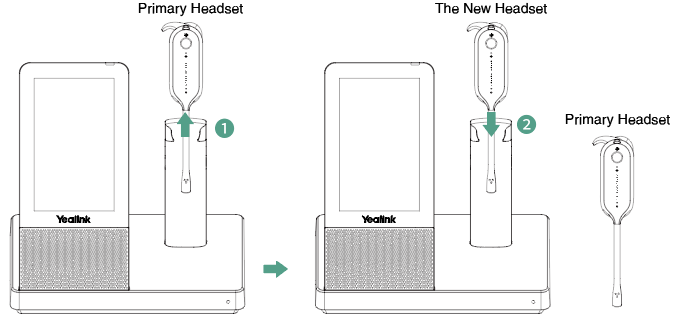
3. Press the Call Control button on the primary headset within 10 seconds to accept the new headset.
4. The primary headset prompts "New Headset Joined", and the new headset prompts "Headset Connected".
Once the primary headset establishes the call, audio will be shared between headsets. When the call ends, the additional headset will disconnect from the base.
By default, the new headset is muted after pairing.
Important:
Note: Up to three headsets can be connected to one base for conferencing.
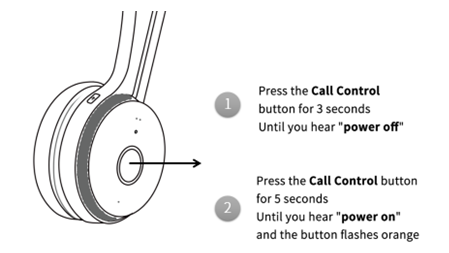
1. Power off the new headset by pressing the Call Control button for 3 seconds until you hear "Power Off".
2. Power on the headset and hold the Call Control button for 5 seconds until you hear "Power On, Pairing Mode". The button flashes orange.
3. Put the base into pairing mode.
When WH62/WH63 is in an idle state, press the PC button for 5 seconds until the button flashes green and white.

4. Press the Call Control button on the primary headset within 10 seconds to accept the new headset.
The primary headset prompts "New Headset Joined", and the new headset prompts "Headset Connected".
1. Power off the new headset by pressing the Call Control button for 3 seconds until you hear "Power Off".
2. Power on the headset and hold the Call Control button for 5 seconds until you hear "Power On, Pairing Mode". The button flashes orange.
3. Put the base into pairing mode.
When WH66/WH67 is used during a call, go to Add Headset > Pair without docking.
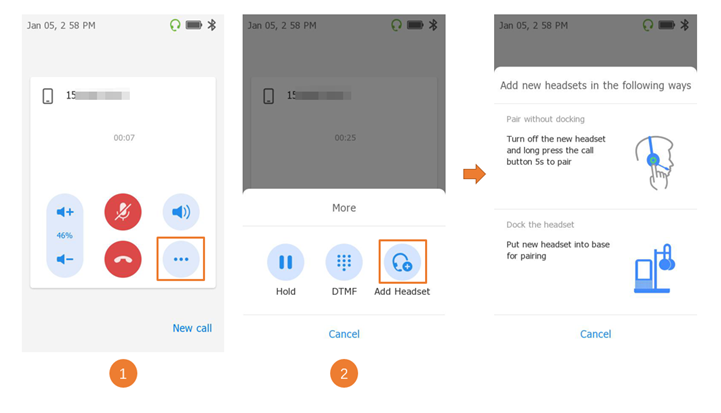
4. Press the Call Control button of the primary headset within 10 seconds to accept the new headset into the conference.
The primary headset prompts "New Headset Joined", and the new headset prompts "Headset Connected".
Note: Up to three headsets can be connected to one base for conferencing.